
8 Creative Lesson Activities with Multimedia Resources that Will Elevate Your Lessons
 Chelsey Both —
A digital activity can be much more than a set of questions or exercises. The right resources can give students the extra support they need while working, without interrupting the flow of the activity. Having everything they need in one place can help students work more independently and make a digital activity feel more complete.
That’s where the new BookWidgets experience comes in. With the latest updates, you can add resources across widgets and use them to support students directly within an activity. Whether you want to provide your students with additional information or let them watch a video, you can now bring that content into the activity itself.
To show you what this looks like in practice, we’ve also refreshed our collection of ready-to-use classroom activities. In this post, you’ll discover examples from different subjects and see how we used the new possibilities to create activities that you can use or adapt for your own lessons.
8 Classroom Examples You'll Find in This Blog Post
This post features eight BookWidgets examples created by the BookWidgets team. You’ll find a quick overview of each activity below, but be sure to keep reading! We’ll take a closer look at each example later in the post, including the BookWidgets features we used to create it and tips for using it in your own classroom.
- Exploring Turning Points in History with a Timeline
- Learn Animal Names with a Memory Game
- Fun Museum Mystery WebQuest
- Discover Flemish Proverbs with an Image Viewer
- Learn About Art with a Jigsaw Puzzle
- Review English Prepositions with a Quiz
- Improve Reading Comprehension with a Mind Map
- Practice Two-Digit Multiplication with Video Support
🔎 New to BookWidgets? Here’s what you need to know in three sentences:
- BookWidgets is an all-in-one content creation tool for teachers that helps all teachers create interactive digital assignments and assessments (with a variety of 37 interactive question types).
- Teachers can share BookWidgets evaluation through their connected learning management system, such as Google Classroom, Microsoft Teams, Canvas, Moodle, and many more, making digital activities easy to manage within their existing workflow.
- Students answers are collected and organized in a grading dashboard, where teachers can review work, give feedback, and evaluate performance efficiently.
An Elevated BookWidgets Experience
BookWidgets has a fresh new look and a more consistent workflow across widgets. We’ve redesigned the in-product experience and made important tools available in more places, making it easier to create interactive activities and support your students from start to finish.
One of the biggest changes is that resources are no longer limited to Quiz widgets. You can now add instructions, theory, examples, videos, links, documents, and extra help across widgets. We’ve also streamlined security features, giving you more control when using BookWidgets for assignments, practice, tests, or exams.
If you'd like to see the new design and workflow in action, join one of our upcoming webinars. We'll walk you through the elevated BookWidgets experience, highlight the biggest changes, and show you how to get started with confidence. We offer webinars in English, Dutch, French, and German. Choose your preferred language below and register for a session that fits your schedule.
🇺🇸 English - 🇳🇱 Dutch - 🇫🇷 French - 🇩🇪 German
Can't attend the live session? No problem! Register anyway, and we'll send you the webinar recording by email afterward so you can watch it whenever it suits you.
Discover Our Newest Classroom Activity Examples
1. Exploring Turning Points in History with a Timeline
| Icon | Area | Explanation |
|---|---|---|
| 🎓 | Subject & Grade | History — secondary school |
| 🎯 | Learning goal | Students understand how a major historical event can influence what happens next and use a timeline to place events in context. |
| 🧩 | BookWidgets widget type | Timeline |
| ⏱️ | Time needed | 30–40 minutes |
What happens after a major turning point in history? In this activity, students start by watching a video about the French Revolution. Once they have the necessary background information, they use a timeline to map out how history continued after this important event. The video gives students some context before they have to think for themselves. Instead of simply answering questions about what they watched, they have to use what they learned to place events in context and consider how one historical event can influence what happens next.
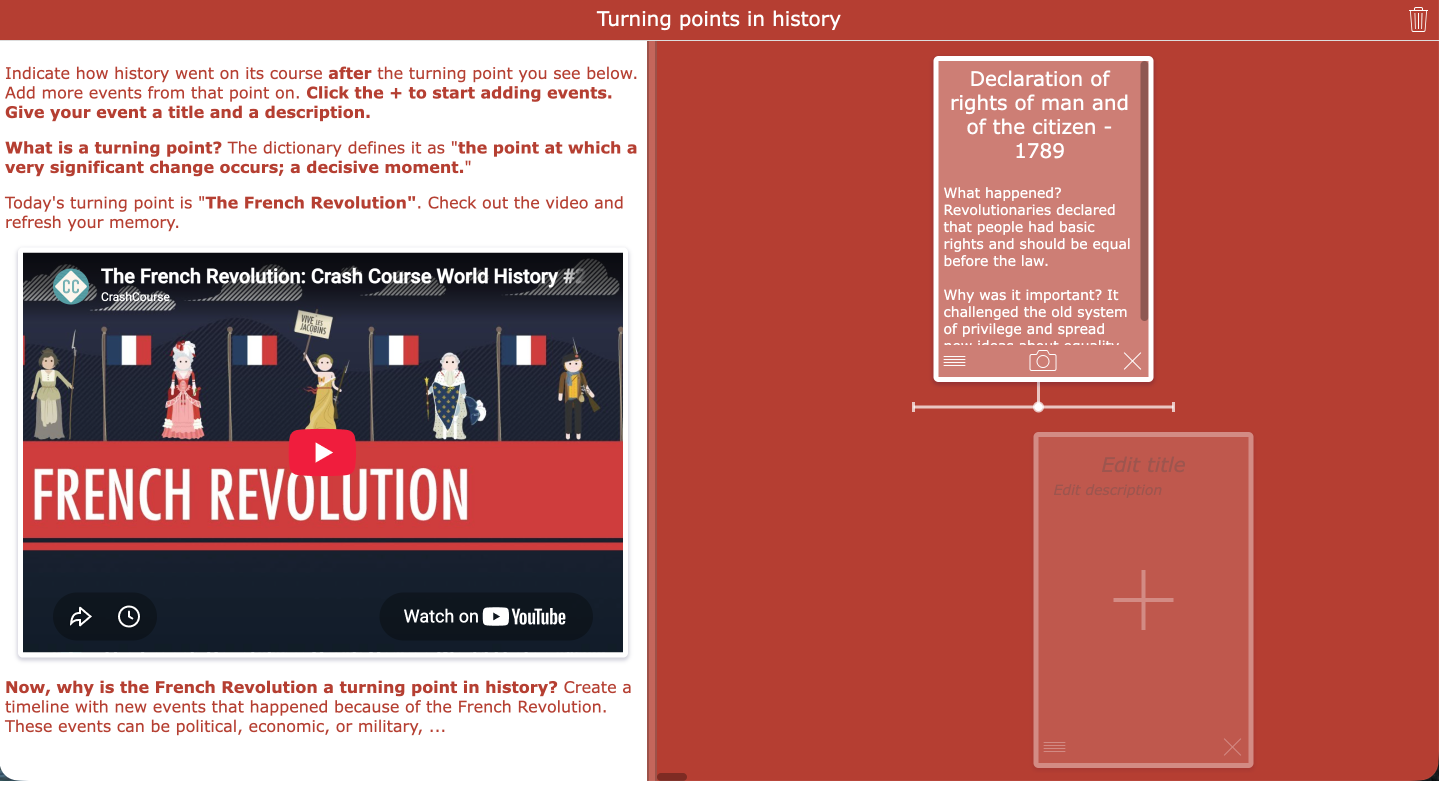
✨ What's new: You can now add resources to all BookWidgets widgets, including the Timeline. This makes it easy to give students the information they need directly within the activity. In this example, a video provides some background information before students start working on their timeline, and they can easily return to the video whenever they need a reminder while completing the activity.
2. Learn Animal Names with a Memory Game
| Icon | Area | Explanation |
|---|---|---|
| 🎓 | Subject & Grade | English — primary school |
| 🎯 | Learning goal | Students learn and practice animal names by listening to their pronunciation and matching images of the animals. |
| 🧩 | BookWidgets widget type | Memory Game |
| ⏱️ | Time needed | 10–15 minutes |
A simple Memory Game becomes a little more interactive by adding a Hotspot Image as a resource. Students first use the Hotspot Image to discover the animal names. By clicking on each animal, they hear an audio recording of its name. Once they’ve discovered all the animals, they can play the Memory Game.
It is now possible to add for example a Hotspot Image directly to the Memory Game as a resource, so students have everything they need in one place. To add another widget as a resource, simply copy its link and paste it into the Resources tab in the widget editor.
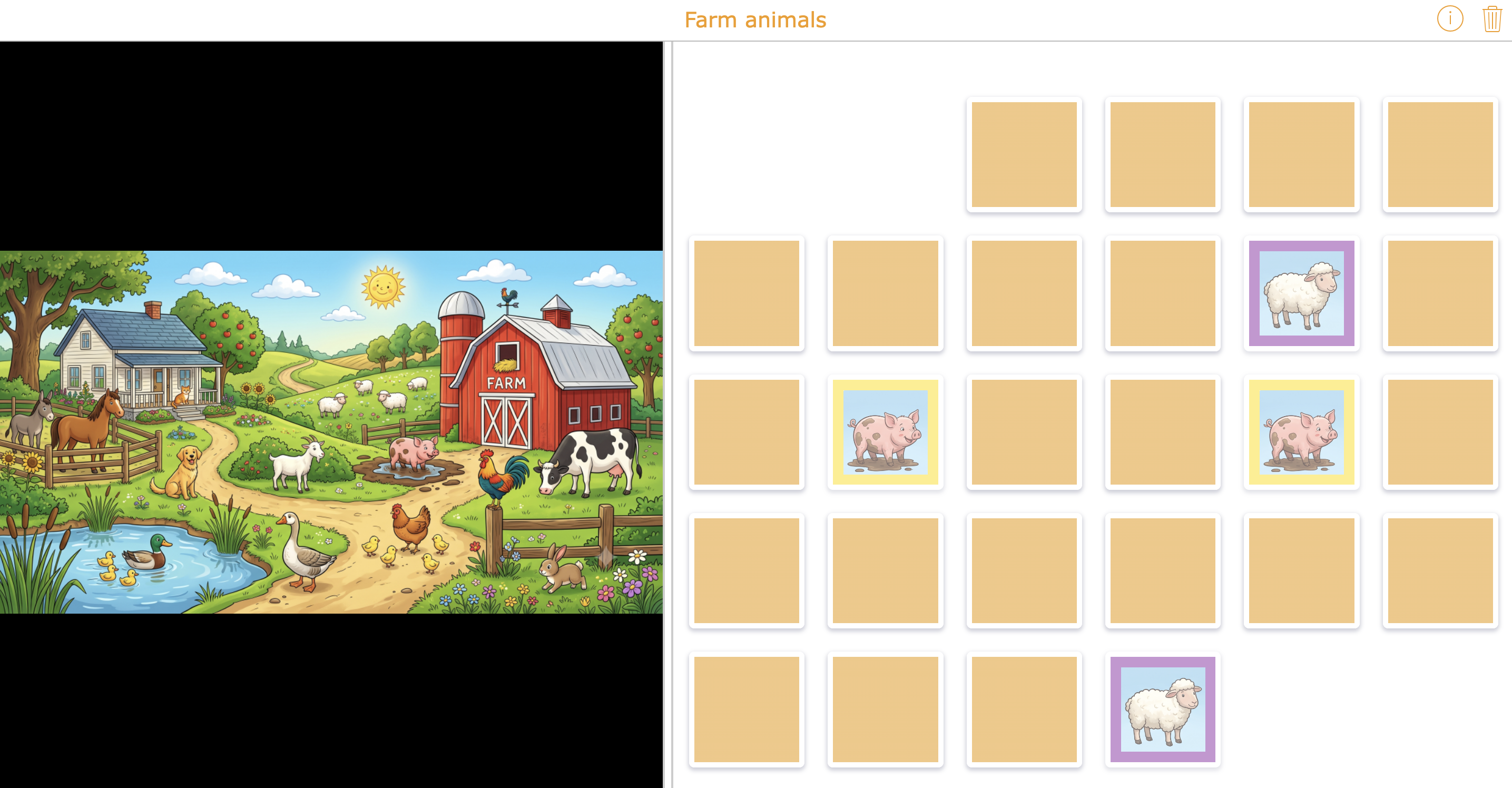
✨ What's new: Widget titles can now be hidden when they aren't needed. In the example above, we hid the title of the Hotspot Image so it fits more naturally as a resource within the Memory Game.
3. Fun Museum Mystery WebQuest
| Icon | Area | Explanation |
|---|---|---|
| 🎓 | Subject & Grade | Miscellaneous — primary and secondary school |
| 🎯 | Learning goal | Students follow clues, solve challenges, and use their problem-solving skills to uncover who stole the priceless treasure. |
| 🧩 | BookWidgets widget type | WebQuest |
| ⏱️ | Time needed | 15–20 minutes |
Who stole the priceless treasure? In this fun WebQuest, students become detectives and follow the clues to uncover the thief. It’s a great classroom energizer to use when you have some extra time, or as a fun activity at the beginning or the end of the school year.
This WebQuest shows how startup passwords can now be added to more widgets, including game widgets. This makes it possible to control when students can access an activity and guide them through a specific sequence.

✨ What's new: Startup passwords can now be added to more widgets, including the game widgets. In a WebQuest tab, you can use different startup passwords for multiple widgets, allowing students to work through activities in a specific order. They unlock the next activity only after completing the previous one and receiving the corresponding password.
4. Discover Flemish Proverbs with an Image Viewer
| Icon | Area | Explanation |
|---|---|---|
| 🎓 | Subject & Grade | Languages — secondary school |
| 🎯 | Learning goal | Students discover the meaning of Flemish proverbs and identify proverbs hidden in Pieter Bruegel’s painting. |
| 🧩 | BookWidgets widget type | Image Viewer |
| ⏱️ | Time needed | 30–35 minutes |
An Image Viewer can be more than just a way to display an image. In this activity, students first get some background information about Flemish proverbs before exploring Pieter Bruegel’s famous painting and searching for as many proverbs as they can find. Once they think they’ve found them all, they can watch a video that reveals the proverbs hidden in the painting.
Thanks to the new workflow, resources can also be added to the Image Viewer. This means you can combine theory, video, and more with the Image Viewer, giving it a bigger purpose in your lesson. It becomes more than simply a way to view an image, it becomes part of a complete learning experience.

5. Learn About Art with a Jigsaw Puzzle
| Icon | Area | Explanation |
|---|---|---|
| 🎓 | Subject & Grade | Art & History — secondary school |
| 🎯 | Learning goal | Students explore a famous painting while learning more about the artwork. |
| 🧩 | BookWidgets widget type | Jigsaw Puzzle |
| ⏱️ | Time needed | 15–20 minutes |
Adding a resource to a Puzzle gives students more context while they work on the activity. In this example, a Wikipedia page 'The Kiss (Klimt)' is added as a resource on the left, while students solve a puzzle of the painting on the right. This way, students can explore the background information while putting the pieces together, turning a simple puzzle into an activity with an extra learning element.
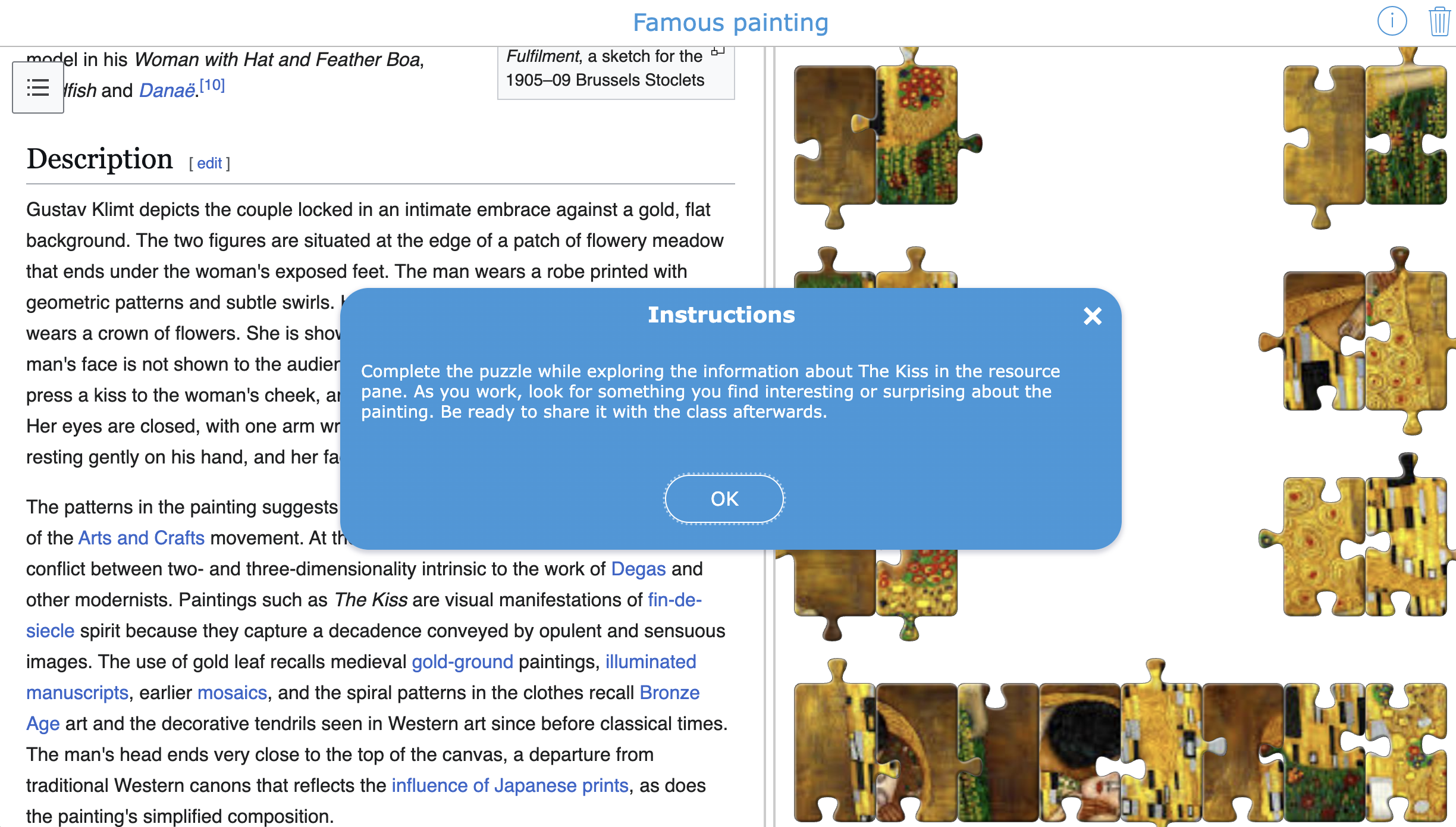
✨ What's new: The size of the resource pane can be adjusted to fit your activity. In the widget editor, go to the Design tab, select Split Style, and adjust the Initial % Resource Pane setting to choose how much space the resource pane takes up on the screen.
6. Review English Prepositions with a Quiz
| Icon | Area | Explanation |
|---|---|---|
| 🎓 | Subject & Grade | English — secondary school |
| 🎯 | Learning goal | Students review English prepositions and check their understanding of the different rules and uses. |
| 🧩 | BookWidgets widget type | Quiz |
| ⏱️ | Time needed | 10–15 minutes |
This Quiz is ideal for when students have learned new theory in class and want to practice the material. It gives them a chance to review what they’ve learned and check whether they understand the different rules and uses of English prepositions. The quiz includes a variety of questions to help students refresh their knowledge and show what they know.
This quiz can also be used for repeated practice! We used the question randomization option to make this possible. Students get a different selection of questions each time they take the quiz, so you can reuse the same activity without giving students exactly the same questions every time.

✨ What's new Resources can now be combined with question pages in the quiz to create a structured multimedia quiz. This lets you connect different resources to specific groups of questions and show the relevant content alongside the questions.Learn more in our blog post or video tutorial.
7. Improve Reading Comprehension with a Mind Map
| Icon | Area | Explanation |
|---|---|---|
| 🎓 | Subject & Grade | English — Secondary school |
| 🎯 | Learning goal | Students read about sleep and organize the key information in a clear mind map. |
| 🧩 | BookWidgets widget type | Mind Map |
| ⏱️ | Time needed | 20–25 minutes |
Combining a text with a Mind Map gives students an active way to process and organize what they read. We enabled the text highlighting option, allowing students to mark important passages or key ideas in the text as they read. They can then use these highlights to identify the most important information and structure it in a mind map, helping them better understand and remember the text.
The completed mind map can also be used for follow-up activities, such as discussing the text, writing a summary, or reflecting on the key ideas. You can also use a resource to provide students with additional background information, examples, or other supporting material while they work.
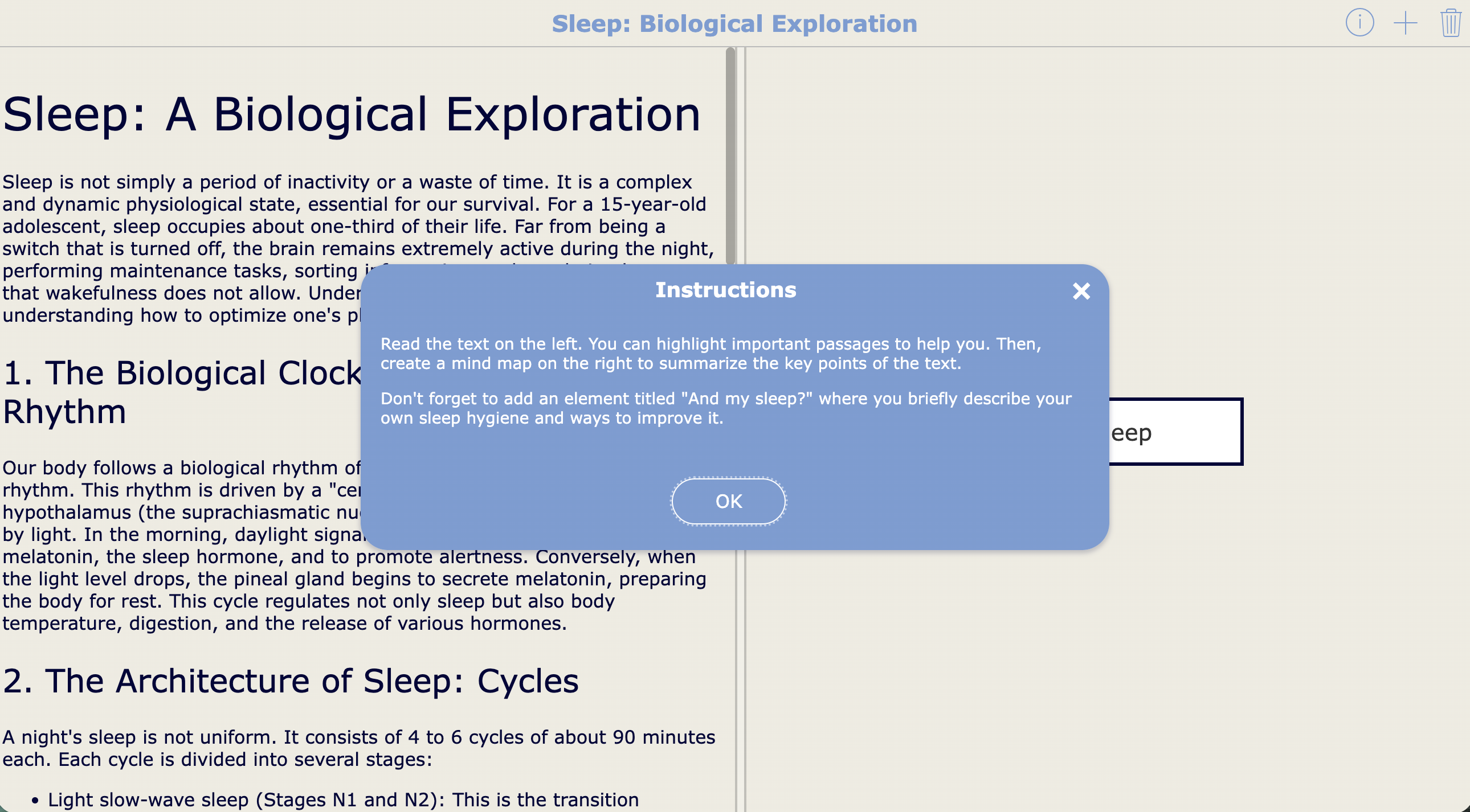
✨ What's new: Add a Rich Text resource to your widget, giving students supporting content while they work on their mind map. Rich Text lets you add text and images, embed videos, or even include another BookWidgets widget, making it a flexible way to provide extra information or support within the activity.
8. Practice Two-Digit Multiplication with Video Support
| Icon | Area | Explanation |
|---|---|---|
| 🎓 | Subject & Grade | Mathematics — primary school |
| 🎯 | Learning goal | Students practice two-digit multiplication and use the video as a reminder when they need help with the calculation method. |
| 🧩 | BookWidgets widget type | Arithmetic |
| ⏱️ | Time needed | 15–20 minutes |
A video can give students the support they need. In this activity, the video on the left explains how to solve two-digit multiplication, while students complete the exercises on the right. If they forget a step or need a quick reminder, they can simply watch the video again without having to wait for help. This makes the activity useful for independent practice, as students can access the explanation whenever they need it.
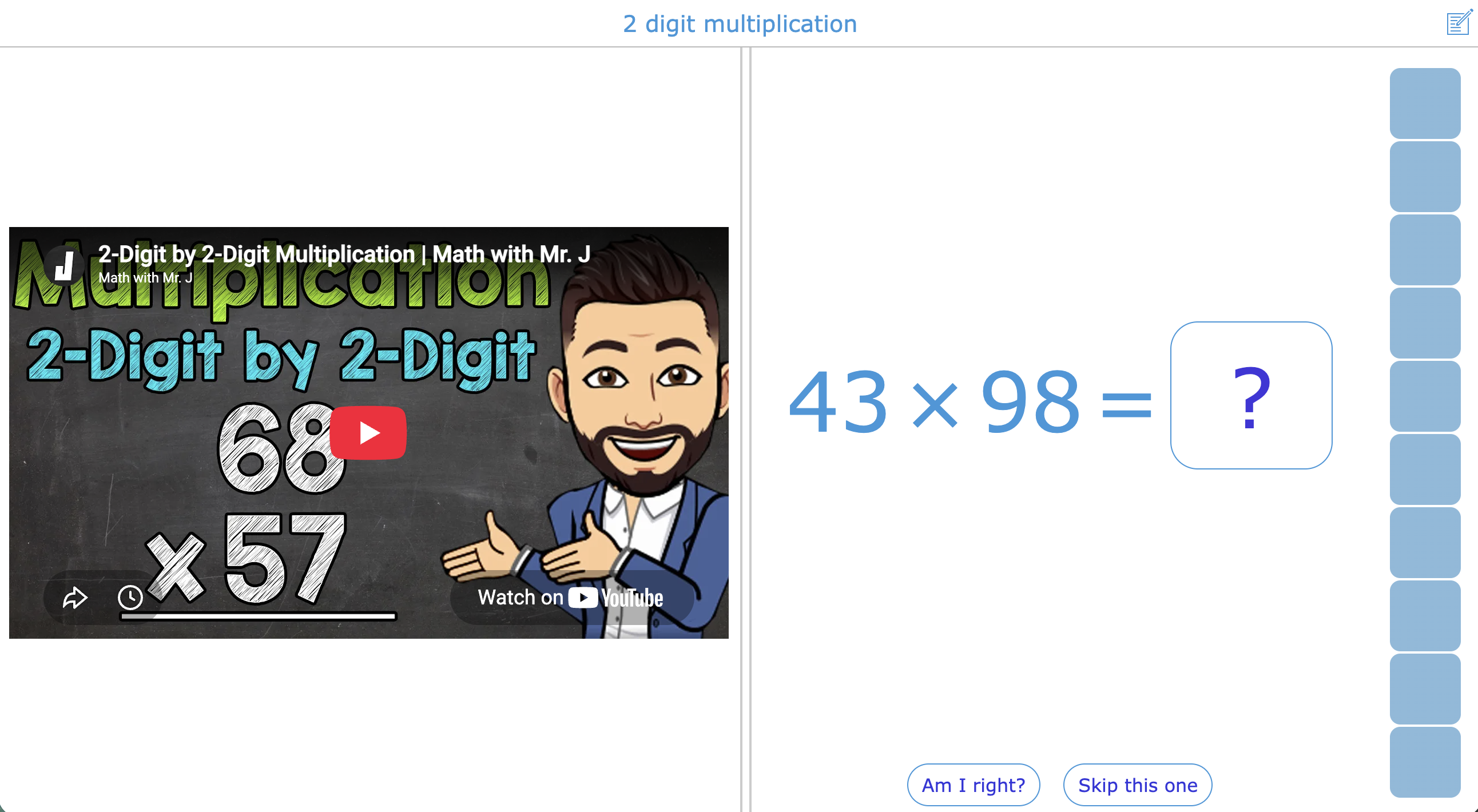
✨ What's new: The Scratchpad can now be added to more widgets, including the Arithmetic widget. It gives students a space to write down their calculations while completing the exercises. To enable it, go to the Tools tab in the widget editor.
Wrap Up
And there you have it! We hope these examples have given you some inspiration for your next lesson and shown you a few different ways you can use the new BookWidgets experience in your classroom.
Now we’d love to hear from you! Have you already tried the new design and workflow? What do you think? Share your thoughts or show us what you’ve created on Facebook or Instagram by tagging BookWidgets. We'd love to see how you're using BookWidgets in your classroom!
And if you’d like to connect with me personally, you can also find me on LinkedIn. Feel free to follow me there 👋


