Use this Helpful AI Assistant to Ideate and Brainstorm Smarter Lessons and Activities
 Lucie Renard —
You don't always need the BookWidgets AI Assistant to immediately create or change something.
Sometimes the most useful first step is simply: Give me ideas.
You might know the topic you need to teach but not yet know how you want to structure the lesson.
Or you may already have a Quiz that works but want ideas to improve it.
In this post, we'll use the AI Assistant to:
🎥 1-minute video: Brainstorm lesson ideas with the BookWidgets AI Assistant
New to BookWidgets? Learn more about it here.
Ideate Case Study 1: Brainstorm a WebQuest Before You Build It
The situation
Imagine you're preparing an ELA lesson about William Shakespeare.
You know you want students to learn more about Shakespeare, his work, his historical context, and why his plays are still relevant today. But you don't yet know what the WebQuest should look like.
Instead of immediately asking the AI Assistant to create the lesson, use it as a brainstorming partner first. Ask for different approaches, compare them, and choose the lesson idea that best fits your students and learning goals.
| Step | Action | Prompt to use in the AI Assistant |
|---|---|---|
| 1 | Create a blank WebQuest widget and open the AI Assistant. | The AI Assistant can be opened in all widget types by clicking the magic wand in the upper right corner within the widget. |
| 2 | Give the AI Assistant your topic and target group, but don't ask it to build the WebQuest yet. ⚠️ Wait before moving on! We'll add some more instructions to our prompt. | "I want to create an ELA WebQuest about William Shakespeare for students aged 14 to 15. Don't create the WebQuest yet. Help me brainstorm different lesson approaches first." |
| 3 | Ask for different lesson concepts. | "Give me 5 very different WebQuest concepts about Shakespeare. Each concept should have a different focus. Briefly explain the learning goal and final student task for each idea." |
Read through the lesson plan proposals. Decide which concept to go with and continue your chat. 👇
| Step | Action | Prompt to use in the AI Assistant |
|---|---|---|
| 4 | Choose one concept and develop it further. ⚠️ Wait before moving on! We'll add some more instructions to our prompt. | "Develop idea 3 further. Give me a possible WebQuest structure with 5 clear steps. For each step, explain what students should discover, read, analyze, or create." |
| 4 | Brainstorm interactive activities for each part of the lesson. ⚠️ Wait before moving on! We'll add some more instructions to our prompt. | "Suggest a suitable BookWidgets activity for each step of the WebQuest. Include different types of activities for exploring information, practicing Shakespearean vocabulary, analyzing a short text or quote, checking understanding, and reflecting." |
| 6 | Once you've chosen the ideas you want to use, ask the AI Assistant to start building. | "I'm going with this lesson structure and the suggested activities. Use these ideas to start creating the WebQuest." |
💡 Teacher Tip: For cost-conscious use, it's better to include all actions in 1 elaborate prompt. Learn more about how to use the BookWidgets AI Assistant more cost-efficiently.
What's the outcome of our brainstorm? The result
Ideate first, create second
There's an important difference between asking: "Create a WebQuest about Shakespeare." and asking: "Give me 5 different ways I could teach Shakespeare through a WebQuest."
The second prompt gives you different pedagogical directions to choose from before anything is created.
You might discover an approach you hadn't considered yet: investigating Elizabethan theatre, decoding Shakespearean language, comparing a play with a modern adaptation, exploring recurring themes, or turning students into researchers investigating why Shakespeare is still relevant today.
The AI Assistant provides the possibilities. You decide which lesson idea works for your students.
Let's check the output and lesson ideas the AI Assistant gave us, based on the first prompts above. 👇
| WebQuest concept | Details |
|---|---|
| 1. The Elizabethan Theater Producer | Focus: Historical & Cultural Context — The Globe Theatre, London society, and staging conditions. Pedagogical model: OVUR / Task-Based Approach Learning goal: Understand how the physical space, social hierarchy between nobles and groundlings, and cultural conditions of Elizabethan London shaped Shakespeare's drama and staging. Final task: Create a Production Pitch & Staging Guide for a 1599 play at the Globe Theatre. Students choose a scene and plan staging, special effects, costumes, and a pitch to persuade the Master of the Revels to approve the performance. |
| 2. The Authorship Investigation: Fact vs. Conspiracy | Focus: Critical Media Literacy, Historiography & Source Evaluation Pedagogical model: Problem-Based Learning (PBL) / Inquiry Learning goal: Develop critical thinking and argumentative skills by evaluating historical evidence and distinguishing credible scholarship from anti-Stratfordian conspiracy theories, such as claims involving Francis Bacon or Edward de Vere. Final task: Produce an Investigative Mini-Podcast / Case Report in which students review the "clues," examine historical records such as parish registers, the First Folio, and legal documents, and present a verdict defending why the glovemaker's son from Stratford remains the most plausible playwright. |
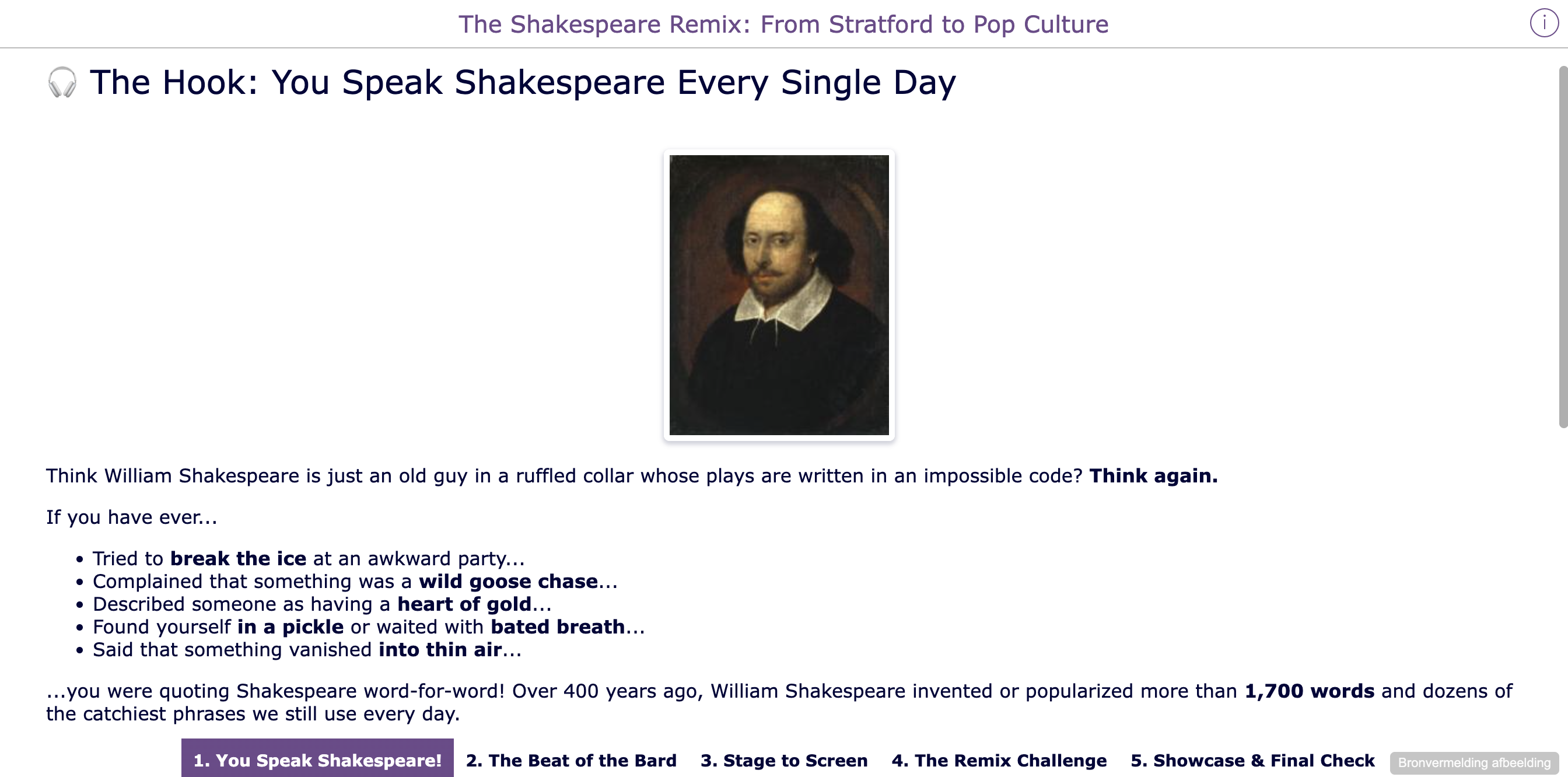
| 3. The Shakespeare Remix: From Stratford to Spotify & Cinema | Focus: Linguistic Legacy & Modern Storytelling Adaptations Pedagogical model: 5E Instructional Model — Engage → Explore → Explain → Elaborate → Evaluate Learning goal: Analyze how Shakespeare's coined words, idioms, themes, and archetypes continue to influence modern media, pop culture, and contemporary English. Final task: Create a Modern Transmedia Adaptation of a famous scene, such as the balcony scene from Romeo and Juliet or the witches' prophecy in Macbeth. Students rewrite the scene as a podcast script, social media thread, screenplay, or another modern format while weaving in at least 5 authentic Shakespearean idioms or metaphors. |
| 4. The Moral Courtroom: Shakespeare on Trial | Focus: Character Analysis, Conflict & Ethical Decision-Making Pedagogical model: Problem-Based Learning / Debate Learning goal: Deepen literary analysis and textual interpretation by constructing persuasive arguments about character motives, tragic flaws or hamartia, and moral accountability. Final task: Prepare a Mock Trial Brief and Defense/Prosecution Statement for a controversial character. Possible questions include: Is Macbeth solely responsible for his crimes, or was he manipulated? or Was Friar Laurence criminally negligent? Students support their case with textual quotes and psychological motives. |
| 5. The Bard's Rhyme Lab: The Sonnet Masterclass | Focus: Poetic Structure, Meter, Iambic Pentameter & Figurative Language Pedagogical model: Direct Instruction / Scaffolded Skill Building Learning goal: Master the mechanics of the Shakespearean sonnet: 14 lines, ABAB CDCD EFEF GG, iambic pentameter, and the volta, and analyze how rhyme and rhythm enhance emotional expression. Final task: Compose an Original Modern Sonnet about a contemporary topic such as screen addiction, friendship, or future anxieties while following Shakespearean structural rules. Students also write an annotated Artist's Statement explaining their poetic choices and metric substitutions. |
This is great, right?! Now, all you have to do is decide which concept to go with and let the AI Assistant know. And Boom, you have an interactive WebQuest lesson. Here's the result! 👇
When creating and editing your WebQuest, you might need some tips. The next blog posts will help you:
- How to Create Interactive Lessons from Scratch with this Powerful AI Assistant
- 9 Steps for teachers to create the ultimate digital lesson
Ideate Case Study 2: Get New Ideas for an Existing Quiz About Calculating Area
The situation
You already have a math Quiz about calculating area.
Students practice calculating the area of rectangles, triangles, parallelograms, and other shapes. The Quiz works, but most questions follow a similar pattern: students see the measurements, select or calculate the correct area, and move on.
Before creating more questions, use the AI Assistant to analyze the existing Quiz and brainstorm ways to make the practice more varied and pedagogically valuable.
| Step | Action | Prompt to use in the AI Assistant |
|---|---|---|
| 1 | Open your existing Quiz about calculating area and launch the AI Assistant. | The AI Assistant can analyze the questions, resources, and setup already present in your Quiz. |
| 2 | Ask the AI Assistant to analyze the existing activity without making changes. ⚠️ Wait before moving on! We'll add some more instructions to our prompt. | "Review this Quiz about calculating area. Don't change anything yet. Summarize which area skills students are currently practicing, which shapes are included, which question types are used, and how much variety there is in the questions." |
| 3 | Ask for ideas to improve the Quiz. ⚠️ Wait before moving on! We'll add some more instructions to our prompt. | "Suggest 10 ways I could make this Quiz about calculating area more varied and useful for learning." |
| 4 | Prioritize the ideas that add the most learning value. | "Out of these 10 ideas, choose the 5 ideas that would add the most learning value without making the Quiz unnecessarily longer. Explain briefly why you recommend each one." |
Now, let the AI Assistant come up with a plan before you move on:
| Step | Action | Prompt to use in the AI Assistant |
|---|---|---|
| 5 | Accept the plan or request changes | For example: "I'll go with idea 1, 3, 4, and 5, but change idea 5 to 'this question type'." |
Improve what you already have
Ideation isn't only useful when you're starting from a blank page.
An existing Quiz gives the AI Assistant much more context to work with. It can look at what students are already doing and help you spot opportunities to add:
- more varied question types;
- visual problems;
- real-world contexts;
- reasoning questions;
- common misconceptions;
- targeted feedback;
- student help tools;
- and opportunities to apply knowledge in different ways.
A useful starting prompt for almost any existing activity is: "Review this widget and suggest ways to improve the learning experience. Don't change anything yet." This lets you use the AI Assistant as a second pair of eyes before you start editing.
Here's the outcome of AI Assistant's analysis of my Quiz:
AI Assistant Review: Calculating Area Quiz
1. What Does the Current Quiz Already Cover?
| Area | AI Assistant Analysis |
|---|---|
| Skills practiced | Direct formula application; selecting relevant dimensions; reverse calculations; additive composite area; formula recall and recognition. |
| Shapes included | Rectangle, square, triangle, right-angled triangle, parallelogram, trapezoid, circle, and a basic L-shaped composite figure. |
| Question types | 5 numeric answer questions, 4 multiple-choice questions, and 1 matching question. |
| Visual representation | Low. All 10 questions are text-based. There are no diagrams, grids, or labeled geometric figures. |
| Cognitive depth | Mostly procedural. Most questions require students to select and apply a formula. Only a few require additional reasoning, such as ignoring unnecessary dimensions or working backward from an area. |
| Variety | Moderate. Three question formats are used, but numeric input and multiple choice dominate the Quiz. |
10 Ideas to Make the Quiz More Varied
| # | Suggested Improvement |
|---|---|
| 1 | Add visual and labeled diagrams. Let students extract the measurements they need from geometric figures instead of always providing them in text. |
| 2 | Use grids and unit squares. Let students estimate or determine the area of irregular or tilted shapes on a square grid. |
| 3 | Add subtractive compound-area problems. For example, calculate the area of a rectangular patio surrounding a circular pool or a shape with a section removed. |
| 4 | Add "Spot the Mistake" questions. Show an incorrect calculation and ask students to identify and correct the error. |
| 5 | Include more reverse calculations. Give students the area and ask them to determine a missing height, base, radius, or other measurement. |
| 6 | Compare perimeter and area. Include examples that address the misconception that shapes with the same perimeter must also have the same area. |
| 7 | Use practical multi-step problems. Calculate how much paint, flooring, grass seed, or tile is needed after first determining the area. |
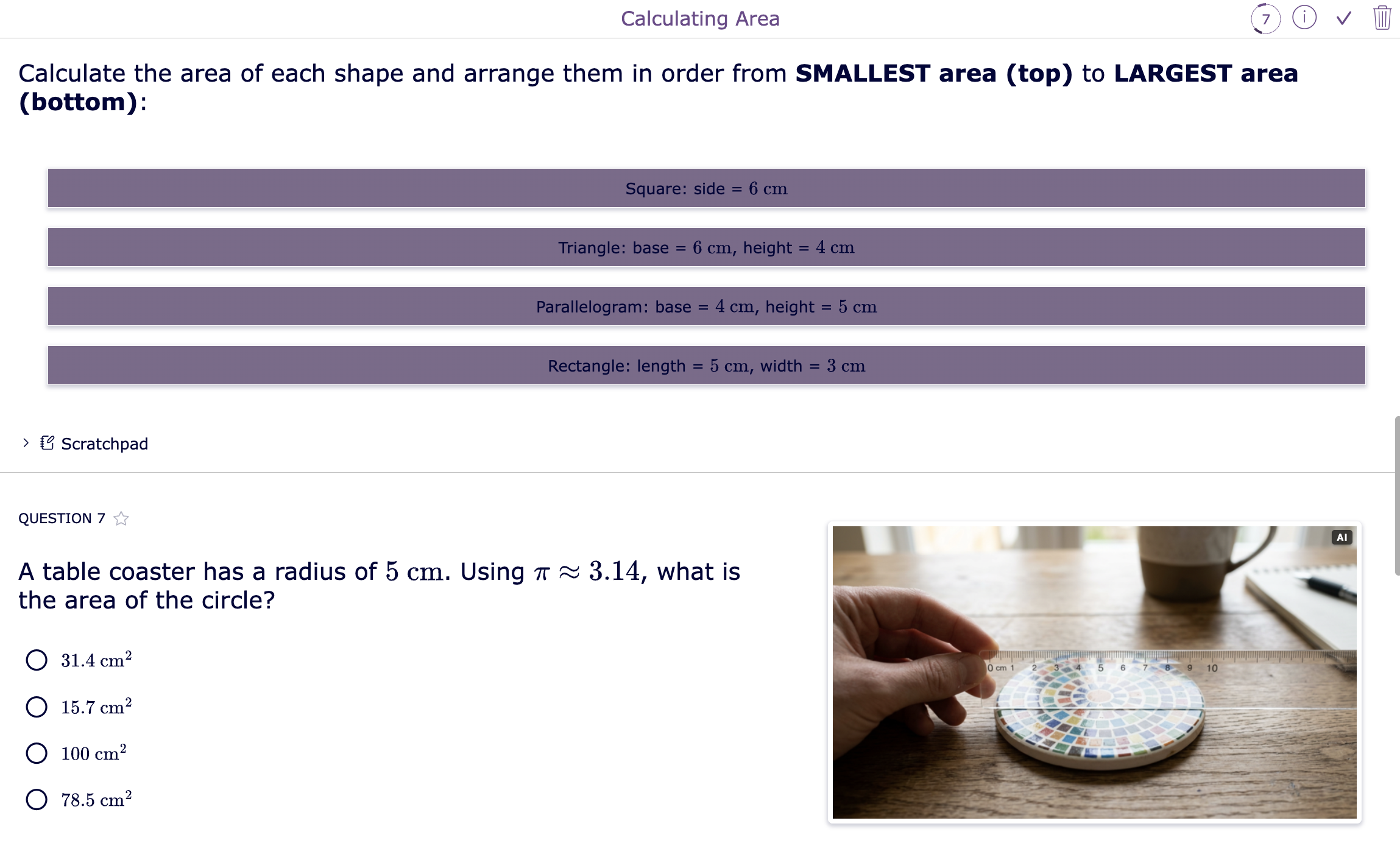
| 8 | Compare and order areas. Give students several shapes and ask them to arrange them from smallest to largest area. |
| 9 | Add categorization activities. Let students group shapes by formula, equivalent areas, or units such as cm, cm², and cm³. |
| 10 | Provide step-by-step guidance. Break more complex problems into smaller scaffolded steps using fill-in-the-blank questions or other support. |
The 5 Improvements with the Highest Learning Value
| Recommendation | Why the AI Assistant Recommends It |
|---|---|
| 1. Visual & labeled diagrams | Adds spatial reasoning. Students need to identify relevant measurements from a visual instead of simply plugging numbers from a written problem into a formula. |
| 2. Subtractive compound areas | Moves beyond simply adding the areas of shapes. Students have to reason about an outer area minus an inner area. |
| 3. Error analysis | Shifts the focus from performing a calculation to evaluating mathematical reasoning. It can directly target common mistakes such as forgetting to divide by 2 for a triangle or confusing radius and diameter. |
| 4. Reverse calculations | Builds on existing reverse-calculation practice but applies it to more complex shapes, such as finding the height of a triangle or the radius of a circle from its area. |
| 5. Ordering and comparing areas | Requires students to think about several shapes at the same time and encourages comparison, estimation, mental math, and proportional reasoning. |
An Extra Issue the AI Assistant Spotted
| Finding | Suggested Action |
|---|---|
| Possible incorrect answer keys | The AI Assistant noticed that multiple-choice questions #3, #5, #7, and #9 appear to have a different answer marked as correct than the answer indicated by their step-by-step explanations. I can correct these answer keys before assigning the Quiz, if you ask me to. |
Would you have noticed all of this without your AI Assistant brainstorm partner? Let's check out the newest version of the assignment! 👇
Why Ideate with the AI Assistant?
Sometimes you don't need the AI Assistant to build anything yet.
You simply need new ideas. (And yes, one of the biggest benefits is that the AI Assistant can act on these ideas and make them come to life!)
You may know the topic you want to teach but not how to turn it into an engaging lesson. Or you may already have a Quiz that works and wonder how you could improve it.
Using the AI Assistant for ideation allows you to explore possibilities before committing to a particular lesson design.
You can ask it to:
- Suggest several different approaches to the same topic;
- Generate alternative lesson hooks, activities, or final tasks;
- Suggest suitable BookWidgets widget types for different parts of a lesson within a WebQuest;
- Analyze an existing activity and identify where it could be more interactive;
- Suggest different question types that better match the learning objective;
- Identify opportunities for deeper thinking, reflection, feedback, or student support;
- Point out possible weaknesses or gaps in an activity before you make changes;
- Compare several lesson ideas from different pedagogical perspectives.
A particularly useful approach is to tell the AI Assistant:
"Suggest improvements, but don't change anything yet."
This turns the AI Assistant into a brainstorming partner. It gives you options, while you remain the one who decides which ideas fit your students, learning objectives, and teaching approach.
Final Thoughts
Continue the BookWidgets AI Assistant Series:
- Transform lesson materials with AI
- Create activities from scratch with AI
- Translate interactive lessons with AI
- Differentiate widgets with AI
BookWidgets didn't integrate AI simply because AI is everywhere. The BookWidgets AI Assistant is the result of an extensive development and testing process involving BookWidgets Certified Ambassadors, Trainers and Educators, educational stakeholders, UCLL Research & Expertise, and more than 100 test schools.
The goal of AI in BookWidgets isn't to make decisions for teachers. It's to give teachers a faster way to turn their own ideas, expertise, and lesson materials into engaging interactive learning experiences.
You bring the lesson. You know your students. You make the final decisions. The BookWidgets AI Assistant helps you build it.
And me? I'm Lucie from BookWidgets. Come say hi on LinkedIn 👋
Happy widgeting! 🚀
What is BookWidgets?
If you just started using BookWidgets, or this new possibility has you eager to learn more about BookWidgets, let me explain BookWidgets in 3 sentences:
- BookWidgets is an all-in-one interactive lesson builder for teachers that helps all teachers create interactive digital assignments and assessments (with a variety of 37 interactive question types.
- Teachers can share BookWidgets activities through their connected learning management systems, such as Google Classroom, Microsoft Teams, Canvas, Moodle, and many more, making digital activities easy to manage within their existing workflow.
- Student answers are collected and organized in a grading dashboard, where teachers can review work, give feedback, and evaluate performance efficiently.


