---
title: "How to Create Interactive Lessons from Scratch with this Powerful AI Assistant"
description: "BookWidgets AI Assistant helps teachers build interactive lessons from scratch. Learn how to create WebQuests and games for your students in minutes."
url: "https://www.bookwidgets.com/blog/2026/11/how-to-create-interactive-lessons-from-scratch-with-this-powerful-ai-assistant"
language: "en"
author: "Lucie Renard"
published: "2026-11-25T08:07:39Z"
updated: "2026-11-25T08:40:17Z"
---
# How to Create Interactive Lessons from Scratch with this Powerful AI Assistant
Sometimes you have teaching materials you can reuse.
And sometimes you simply have **a topic, a learning objective, and a blank widget**.
That's where you can use the **[BookWidgets AI Assistant](https://www.bookwidgets.com/ai-assistant) to create a new interactive activity from scratch**.
In this post, we'll create two very different widgets:
1. A complete **[WebQuest Widget](https://www.bookwidgets.com/widget-library/webquest)**.
2. A **[Pair Matching game](https://www.bookwidgets.com/widget-library/pairmatching)** based on a topic.
🎥 **In this short 1-minute video, I'll show you how to create an interactive widget or lesson activity from scratch.**
New to BookWidgets? Learn more about it [here](#What).
## Create Case Study 1: Build a WebQuest Lesson from Scratch
### The situation
Imagine you're preparing a lesson about **climate change for 15-year-old students**.
You know what students should learn, but you haven't created the lesson yet.
We'll use the AI Assistant to build a structured WebQuest with information, activities, resources, and reflection.
| Step | Action | Teacher Tip or Prompt to use in the AI Assistant |
|---|---|---|
| **1** | Create a new **WebQuest widget** and open the AI Assistant. | The AI Assistant can be opened in all widget types by clicking the magic wand in the upper right corner within the widget. Click the help button to learn more about the [AI teacher guidelines](https://www.bookwidgets.com/ai-guidelines) and the actions the AI Assistant can take within the widget you're in. |
| **2** | Give the AI Assistant the topic, target group, and learning objectives. ⚠️ **Wait before moving on!** We'll add some more instructions to our prompt. | *"Create an interactive WebQuest lesson about climate change for 15-year-old students. Students should be able to explain important causes and consequences of climate change and evaluate possible solutions."* |
| **3** | Ask for a clear lesson flow. ⚠️ **Wait before moving on!** We'll add some more instructions to our prompt. | *"Structure the WebQuest into 5 clear steps: introduction, causes, consequences, possible solutions, and reflection. Make sure each step builds on the previous one. Include interactive widgets for each step."* |
| **4** | Add student-friendly instructional content. ⚠️ **Wait before moving on!** We'll add some more instructions to our prompt. | *"Add a short student-friendly introduction and the necessary learning information to each step. Keep the texts concise and suitable for independent learning."* |
| **5** | Add interactive activities throughout the WebQuest. ⚠️ **Wait before moving on!** We'll add some more instructions to our prompt.| *"Add a suitable BookWidgets activity to several steps so students don't only read information. Include activities for studying, practicing, applying knowledge, and reflection."* |
| **6** | Add useful visuals. | *"Add or suggest useful images where they help students understand a concept. Avoid decorative images that don't add learning value."* |
> 💡 **Teacher Tip**: For cost-conscious use, it's better to include all actions in 1 elaborate prompt. Learn more about how to use the BookWidgets AI Assistant more [cost-efficiently](https://www.bookwidgets.com/ai-credits).
#### Interactive widgets in your WebQuest
When creating a WebQuest lesson using the BookWidgets AI Assistant, it's important to understand that the AI will place the interactive widgets in the right spot in your WebQuest, but **you still need to edit them one-by-one to fit the WebQuest**. Luckily, we have some good news!
With one easy prompt in the AI Assistant in the embedded widget, you can create a widget that matches the WebQuest. The widgets already include background information about their purpose in the About section. Here's what you need to do:
| Step | Action | Teacher Tip or Prompt to use in the AI Assistant |
|---|---|---|
| **1** | Click the menu icon ⠇on the widget in your WebQuest widget and choose '**Edit widget**'. The widget will now open in a new tab. | You can always update and edit embedded widgets directly from within your WebQuest. |
| **2** | Open the AI Assistant in the widget. | The AI Assistant can be opened in all widget types by clicking the magic wand in the upper-right corner of the widget. |
| **3** | Add the content to the widget by adding this prompt to the AI Assistant. | *"Create the widget based on the information in the About tab."* |
| **4** | Update your widget. | When making changes to a widget that's already embedded in a WebQuest, you need to update the widget so all changes come through. |
### What did we create? The result
Start with context, not a perfect prompt.
Start with:
- the topic;
- student age;
- learning objective(s);
- and desired lesson structure or outcome.
Then continue giving instructions as the lesson takes shape.
[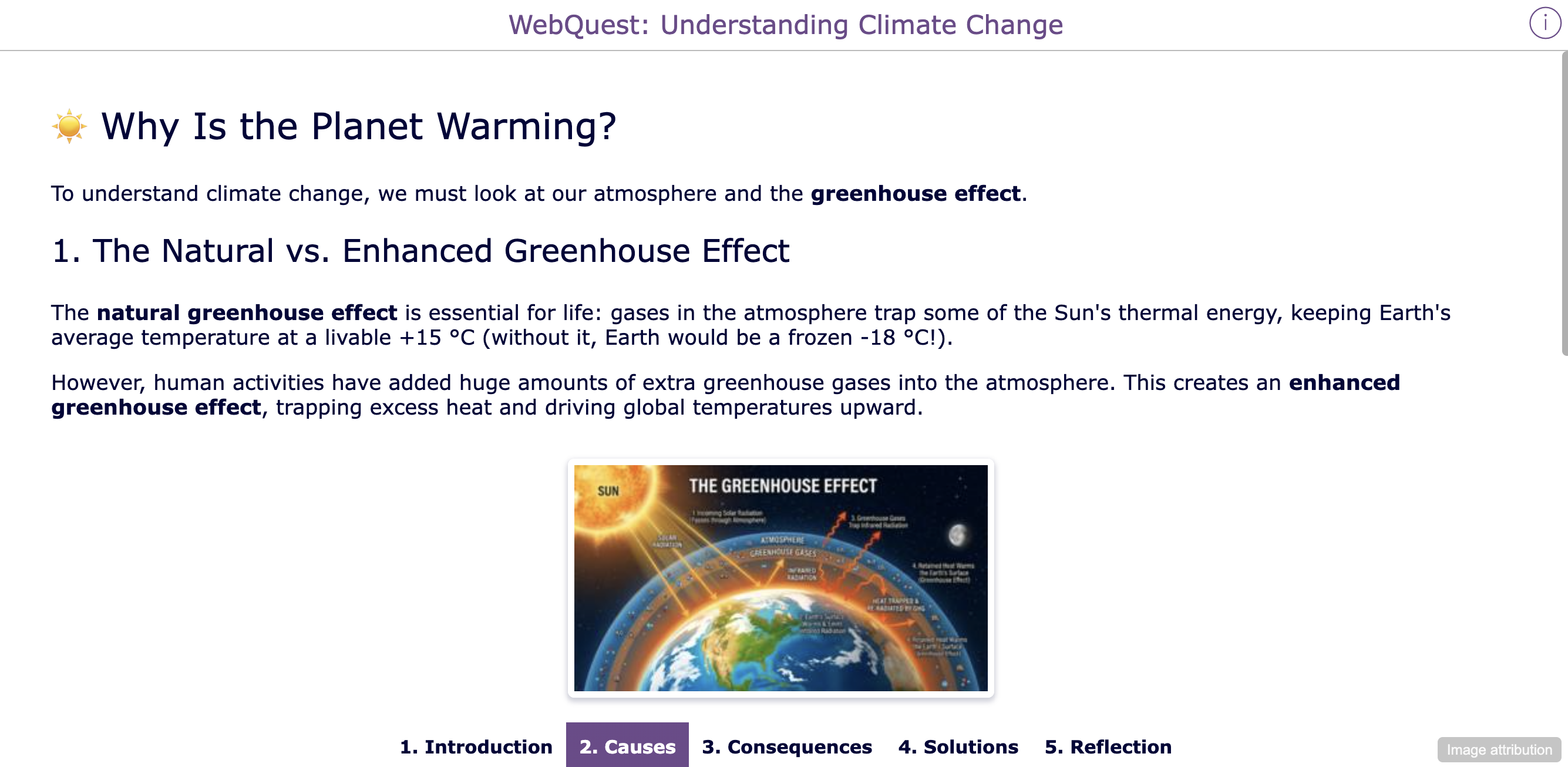](https://www.bookwidgets.com/play/G5t7BbzC-iQAFxMGv6QAAA/KJL53KH/webquest-under)
[*Open this interactive WebQuest lesson about climate change*](https://www.bookwidgets.com/play/t:gUZchBcoOdDOodCY3p9QOEYvKCjSVQ6tmxPS-W3D-N1KSkVRREpV)
## Create Case Study 2: Build a Pair Matching Game from a Topic
### The situation
Creating something from scratch doesn't always mean creating an entire lesson. Sometimes you just need a short practice activity.
Imagine primary school students are learning **English vocabulary about classroom objects**.
| Step | Action | Prompt to use in the AI Assistant |
|---|---|---|
| **1** | Create a new **Pair Matching widget** and open the AI Assistant. | The AI Assistant can be opened in all widget types by clicking the magic wand in the upper-right corner of the widget. Click the help button to learn more about the [AI teacher guidelines](https://www.bookwidgets.com/ai-guidelines) and the actions the AI Assistant can take within the widget you're in. |
| **2** | Give the AI Assistant the topic and student level. ⚠️ **Wait before moving on!** We'll add some more instructions to our prompt. | *"Create a Pair Matching game to practice English vocabulary about classroom objects for primary school students aged 9 to 10."* |
| **3** | Define what students should match. ⚠️ **Wait before moving on!** We'll add some more instructions to our prompt. | *"Create 12 pairs. Put the English vocabulary word on one card and a matching image of the classroom object on the other card. Use common words such as pencil, ruler, book, chair, desk, scissors, backpack, notebook, eraser, glue, pen, and pencil case."* |
| **4** | Make the activity more visual or specify the card types it should create: text-text, text-image, or image-image. | *"Use text-image pairs."* should do the trick. |
| **5** | Enable student support tools if needed. | *"Enable text-to-speech for the text cards."*. |
### What did we create? The result
Let's check out our widget! 👇
[](https://www.bookwidgets.com/play/t:CMx7uyF76KiMkrxnIGuewiN5tQ0ozoLY__SFNqpFp7JKSkxOUUpE)
[*Open this Pair Matching game about classroom tools for primary school students*](https://www.bookwidgets.com/play/t:gUZchBcoOdDOodCY3p9QOEYvKCjSVQ6tmxPS-W3D-N1KSkVRREpV)
If you already have plenty of useful teaching materials, like tests, worksheets, course documents, PDFs, reading texts, and presentations, why start from scratch? Learn here how to transform these lesson materials with the BookWidgets AI Assistant.
## Why Create New Activities with the AI Assistant?
Starting from a blank page can take time. You may know the topic and learning objectives, but still need to decide on the lesson structure, activity type, questions, resources, visuals, instructions, and settings.
The BookWidgets AI Assistant can help you move from **an idea to a first complete version of an interactive activity much faster**. And because the AI Assistant works inside BookWidgets, it can help with much more than generating text or a written lesson plan.
Using the AI Assistant to create a new widget can help you:
- **Overcome the blank-page problem** by turning a topic and learning objective into a concrete activity;
- **Create a structured lesson flow**, for example, in a WebQuest with different steps, resources, and interactive activities;
- **Generate interactive widgets and questions** using suitable widgets and question types instead of relying only on open-ended questions as basic text with your lesson without recording it or multiple-choice questions;
- **Create automatically graded activities**, so students can practice independently and teachers can reduce correction work;
- **Add instant feedback and rationales** that help students understand why an answer is correct or incorrect;
- **Generate resources and explanations** to provide students with the information, examples, or support they need throughout the activity;
- **Generate AI images** for image-based questions, games, Flashcards, visual explanations, or resources within a lesson;
- **Configure teacher options** to determine how students work through the activity, receive feedback, or see their results;
- **Enable student help tools** to give learners additional support where needed;
- **Build on the first version through conversation**, asking the AI Assistant to add, remove, reorganize, simplify, or expand elements as your activity takes shape;
- **Save preparation time** while still keeping full control over the final content, settings, and learning experience.
The AI Assistant doesn't replace your lesson planning. It helps you turn your pedagogical idea into a **richer, interactive BookWidgets activity**, including the widgets, questions, resources, visuals, feedback, support tools, and settings that make the activity work for your students.
## Final Thoughts
Continue the [BookWidgets AI Assistant Series](https://www.bookwidgets.com/blog/sections/ai-assistant):
- **[Ideate lesson plans with AI](https://www.bookwidgets.com/blog/2026/11/use-this-helpful-ai-assistant-to-ideate-and-brainstorm-smarter-lessons-and-activities)**
- **[Transform interactive lessons with AI](https://www.bookwidgets.com/blog/2026/11/how-to-transform-existing-lesson-materials-with-this-impressive-ai-assistant)**
- **[Differentiate widgets with AI](https://www.bookwidgets.com/blog/2026/11/how-to-differentiate-interactive-lesson-activities-with-this-clever-ai-assistant)**
- **[Translate digital activities with AI](https://www.bookwidgets.com/blog/2026/11/how-to-translate-interactive-lessons-in-minutes-with-this-ai-assistant)**
BookWidgets didn't integrate AI simply because AI is everywhere. The BookWidgets AI Assistant is the result of an extensive development and testing process involving BookWidgets Certified Ambassadors, Trainers and Educators, educational stakeholders, UCLL Research & Expertise, and more than 100 test schools.
The goal of AI in BookWidgets isn't to make decisions for teachers. It's to give teachers a faster way to turn their own ideas, expertise, and lesson materials into engaging interactive learning experiences.
**You bring the lesson. You know your students. You make the final decisions. The BookWidgets AI Assistant helps you build it.**
And me? I'm Lucie from BookWidgets. Come say hi on [LinkedIn](https://www.linkedin.com/in/lucierenard/) 👋
Happy widgeting! 🚀
## What is BookWidgets?
If you just started using [BookWidgets](https://www.bookwidgets.com/), or this new possibility has you eager to learn more about BookWidgets, let me explain BookWidgets in 3 sentences:
1. BookWidgets is an **all-in-one interactive lesson builder for teachers** that helps **all teachers create interactive digital assignments and assessments** (with a variety of [37 interactive question types](https://www.bookwidgets.com/question-types).
1. Teachers can share BookWidgets activities through their connected learning management systems, such as Google Classroom, Microsoft Teams, Canvas, Moodle, and many more, making digital activities easy to manage within their existing workflow.
1. Student answers are collected and organized in a [**grading dashboard**](https://www.bookwidgets.com/blog/2021/01/the-best-way-to-review-digital-student-work-efficiently), where teachers can review work, give feedback, and evaluate performance efficiently.